Managing work
Users conduct work in your application by creating and managing cases. A case is a work item that users complete to achieve an outcome, such as processing an insurance claim. Users complete Tasks and processes to progress through a case's Lifecycle and complete a case.
Once a user creates a case, they can manage their work on that case using the Case Page. Here, they will follow a prescribed workflow to conduct work, using the following three regions on the page:
- The summary panel displays an overview of the most important data and contains the case's primary tabs
- The work area is where most of the case activity occurs and users get work done. The work area may consist of Tasks, Pulse, and other components used to conduct work
- The utilities panel contains relevant attachments, team info, and other critical tools
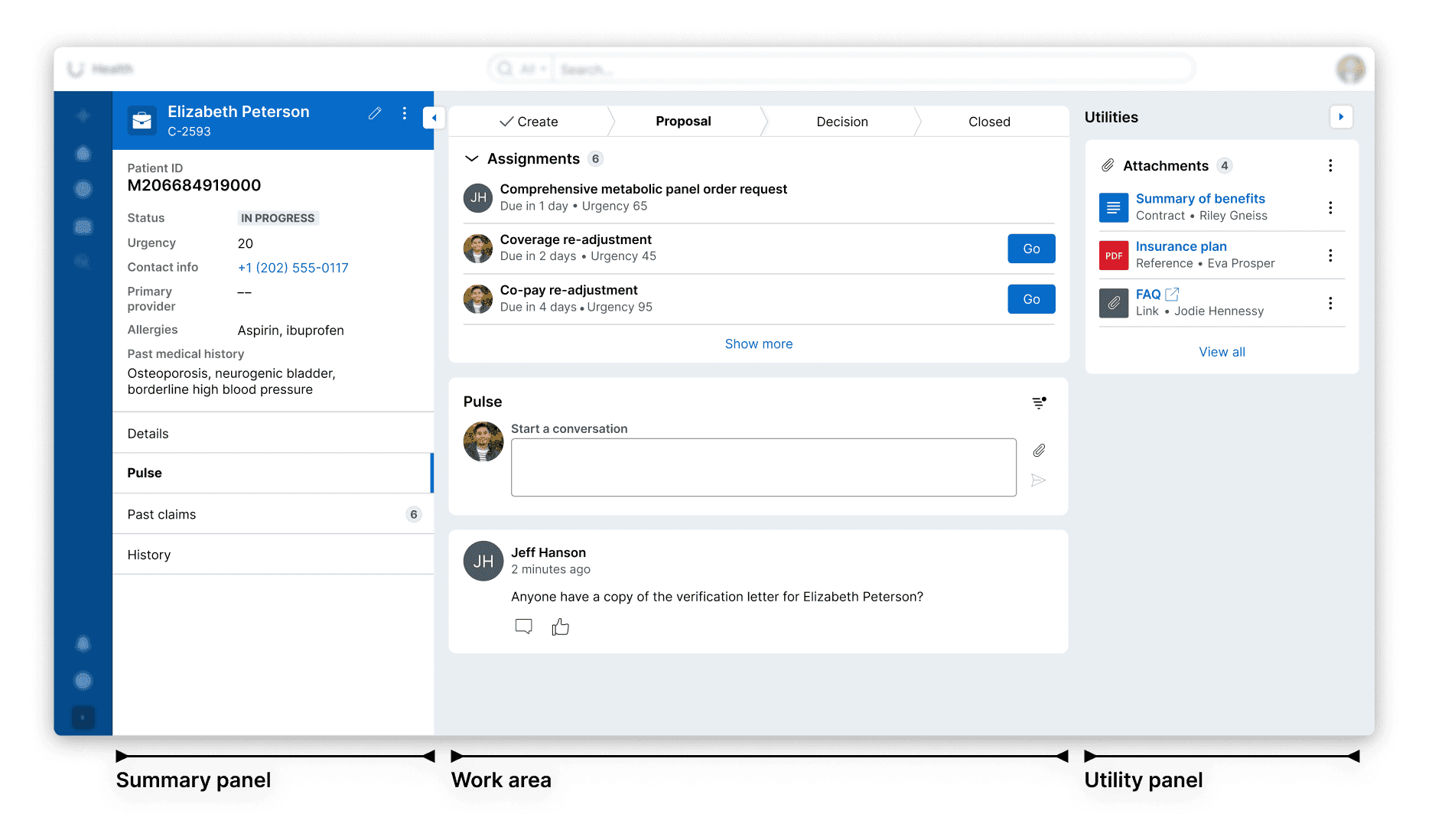
Summary panel
Users will use the summary panel to quickly and conveniently access the most important information about a case when completing work— like the Case ID, status, and account details.
Users can collapse the summary panel to hide it from view at any point in the workflow. This allows them to control their view of the Case Page, including what information is displayed and how screen space is used. When expanded again, the summary panel will display as the user last left it.
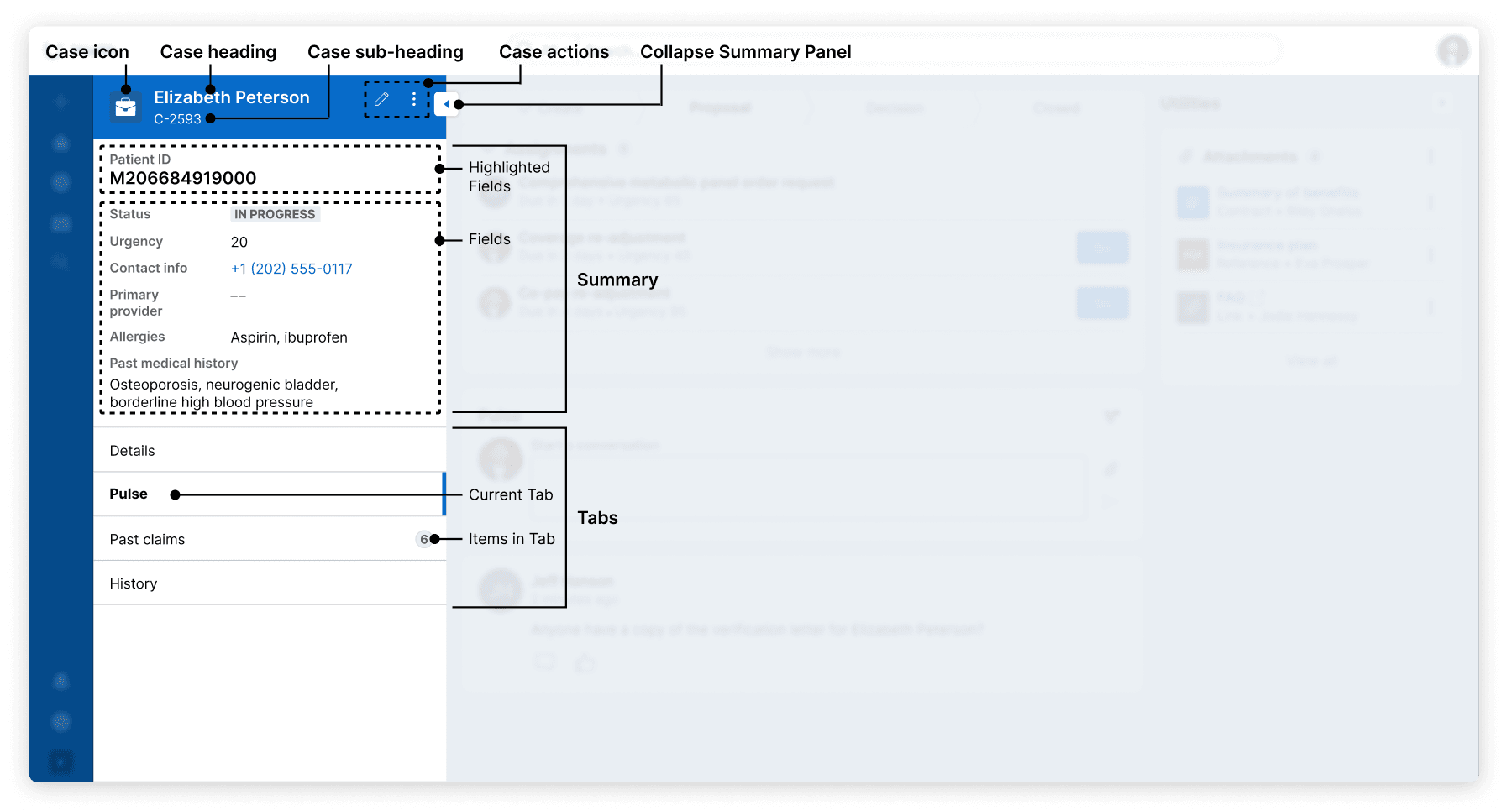
The summary panel is made up of the following elements:
The case header is used to convey the most important information about the case, at a glance. It includes the following information:
- The case (or work item) icon that is shared across all similar work (e.g., a claim icon for all claims work)
- The unique ID of the case or work item
- The title of the case or work item
- Any quick Action(s) for that item (the follow Action is default)
The highlighted fields and fields show the data required to understand the case or piece of work quickly and across all contexts. These fields may include:
- A list of generic or topical updates (e.g., last updated, status, etc.)
- Core information unique to the case or work (i.e., if you are creating a medical insurance application - a member filing claim, specific injury, etc.)
The designer may decide the order of items and total number of items shown. We recommend including under 10 data items, in order to avoid a busy UI.
Tabs house critical pieces of data that allow users to complete their work. Examples include:
- The Pulse tab, which includes full chat conversations and important milestones in the case (and may add details or context in a way that standard data fields cannot)
- The details tab, which includes additional information that is not already provided in the summary
- The summary tab, which houses all summary data when a device's resolution is low. The tab appears as the first tab in responsive mode.
- Custom tabs, which are generally reserved for several types of data:
- Child cases - used to reveal a full list of dependencies, children, and other relationships between data. These are typically used for robust lists of data that must be displayed in entirety or in tables (for comparison)
- Insights - used to visualize data that reveals trends
Work area
The work area is where users complete their work on a case. This is where users will complete Tasks and progress through the Stages of a case until completion.
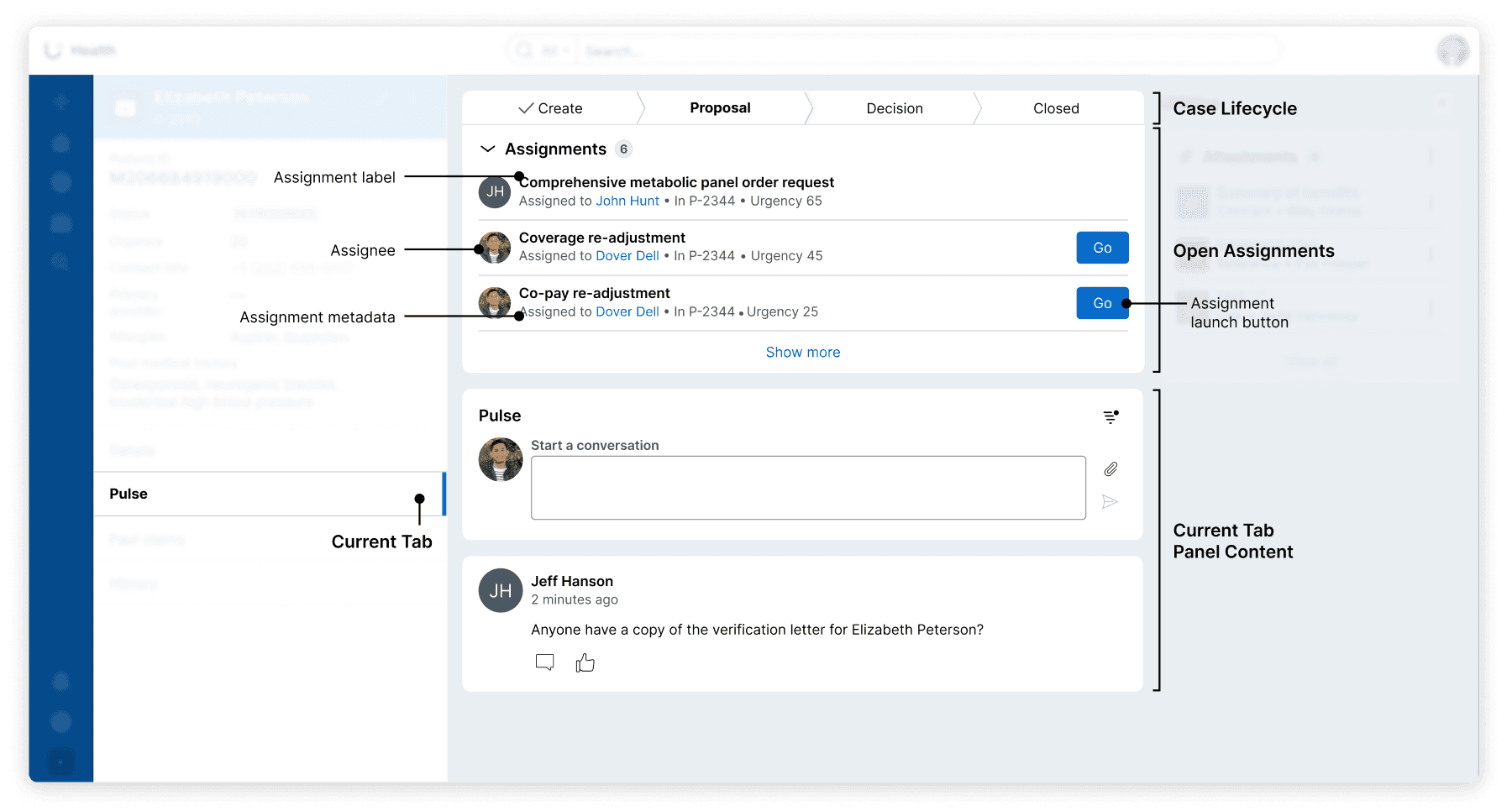
The work area is made up of the following elements:
- The Lifecycle of a case, also known as Stages, shows the past, present and future state of the business process. Users can reference this component to understand what has already been completed on a case and what is upcoming
- Tasks, which include the work-to-be done items, or assignments. Users will work through Tasks to complete case Stages and move work forward until a case is completed. Tasks are made up of forms. Forms help users advance their work on a task or edit previously entered data
- Panel with current tab details, which displays the selected summary panel tab's information. This content can include case details, the Pulse feed, or lists of cases
Utilities panel
The utilities panel is a collapsible region where users access relevant documents and information on people and other cases related to a case.
Like the summary panel, users can collapse the utilities panel to hide it from view at any point in the workflow. When expanded again, the utilities panel will display as the user last left it.
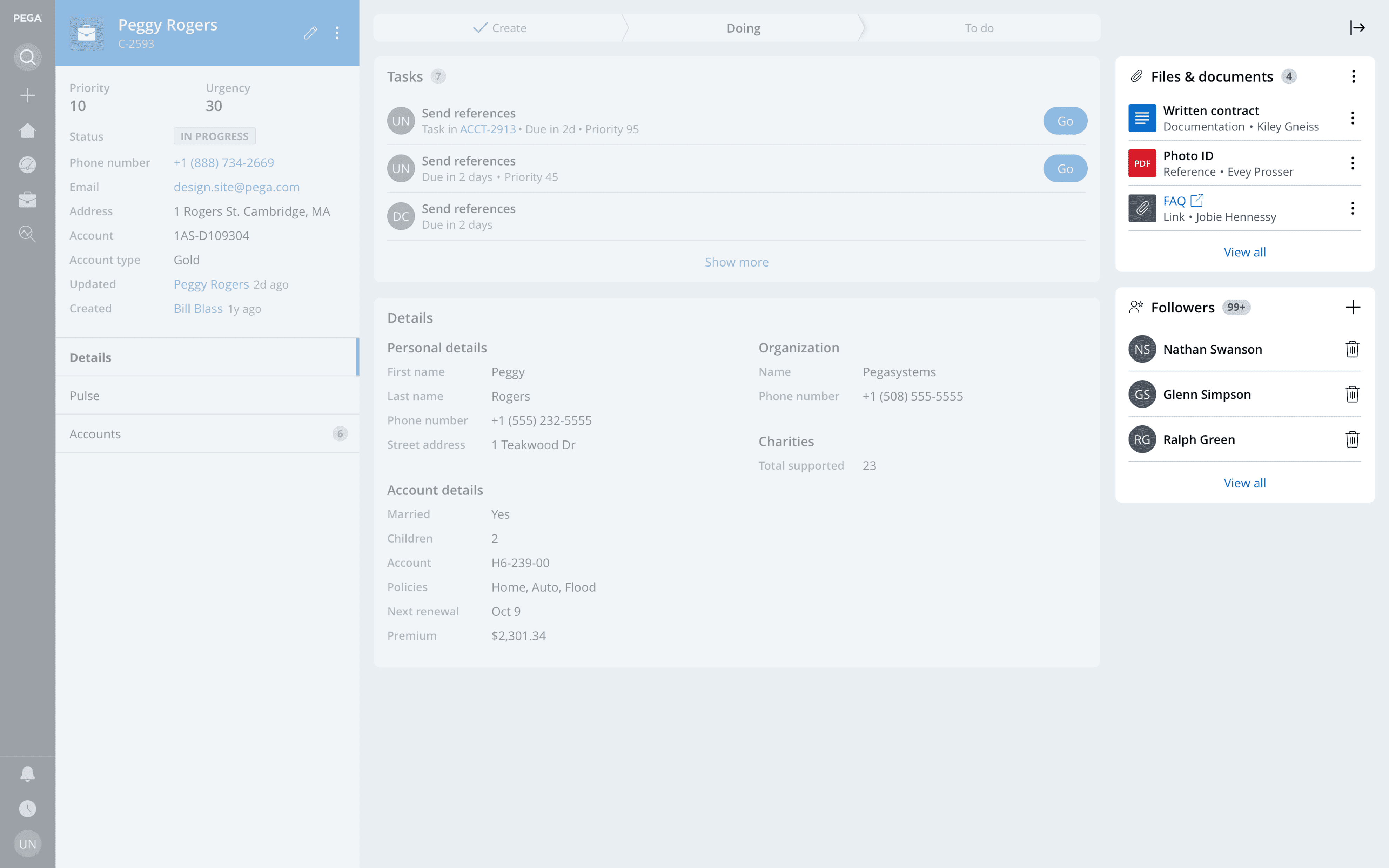
The utilities panel contains the following:
- The utility area, which contains common utility widgets that house information. Users can add utility assets as needed. It can hold the following widgets:
- Expand/collapse toggle
The utilities panel is an optional part of a case; if a designer chooses no utilities for a case, it will not be presented.