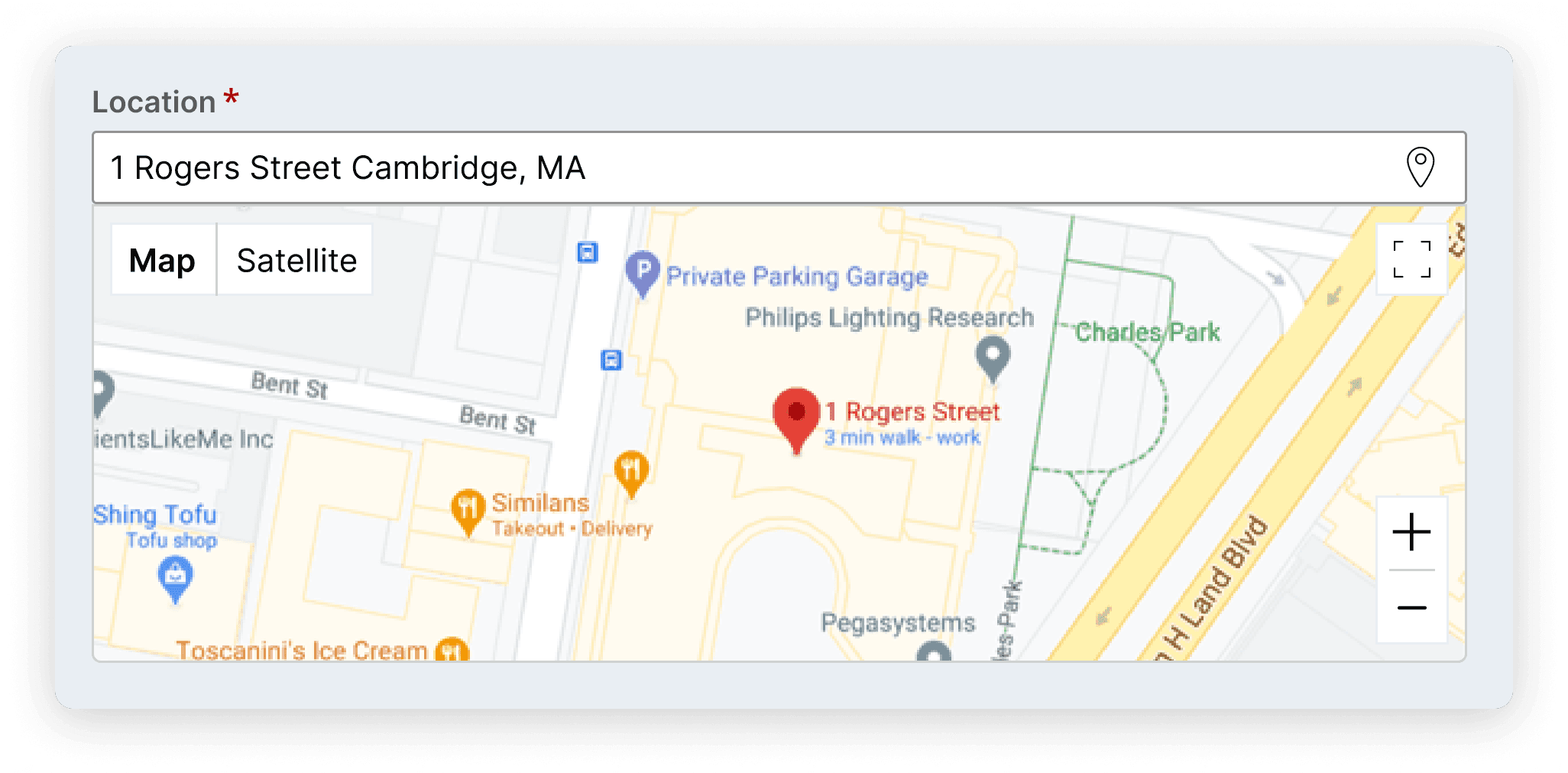
The location input component takes a user’s entered location and adds in the Google Maps location display.
Usage
You will need a Google API Key to work with the location input component. Location input uses Google’s auto-complete to capture the address, latitude, longitude, and name of the chosen location. Location inputs that do not use the location map component must support having the “Powered by Google” graphic within the list of selection results, as per Google’s guidelines.
Location input provides a current location button. This button allows a user to quickly geolocalize their current location.
By default, the map uses the user’s preferred language setting as specified in the browser and region, defaulting to the region assigned to the user’s browser time zone offset.
Variations
No map display
The location input component can be configured so that it does not render a map that displays the inputted location. The user may still press the “Use my current location” button to the right of the field to automatically input their address or enter and select their address from the presented auto-complete options.
Manual address input
We recommend using a manual set of address input fields when Google API cannot be used or P.O boxes must be supported.
The format of the address input fields should follow the standards of the end-user’s country or location.
The following image shows sample addresses for various countries:
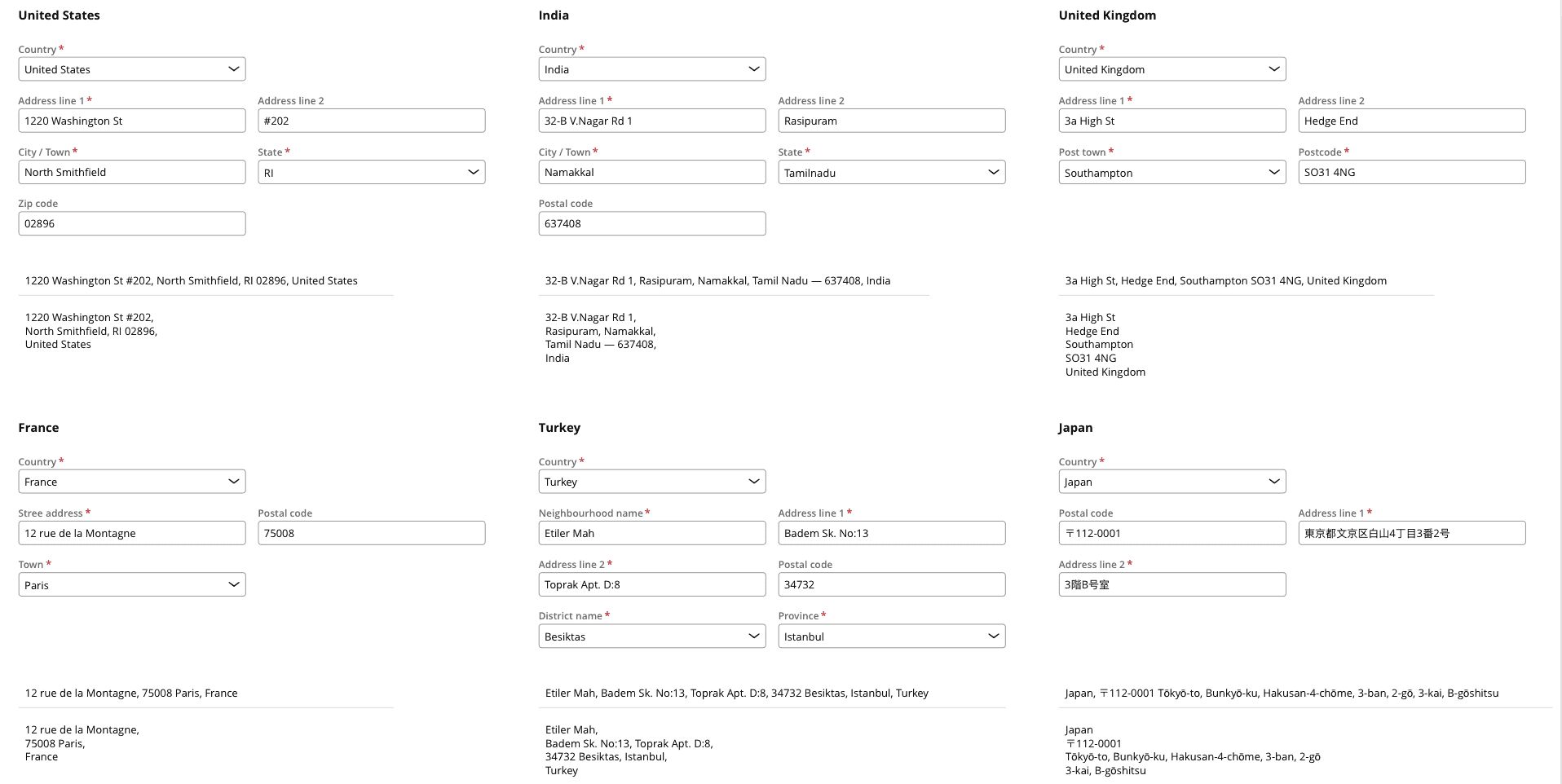
If a user’s needs span across multiple countries, use the generic format below (source: Wikipedia).
- Country
- Street
- City area / District
- City / Town / Village
- County
- Postal code
Configuration
To learn how to configure this component in a Pega application, visit Pega Documentation.
All information on this site is for Pega’s UX design system, also known as Constellation (from 8.8 and onwards). If you have questions, concerns, or any other feedback, please reach out to us on Pega Forums where you can post on the User Experience Expert Circle.
Related components