To complete assignments on a case, your user will work within forms. Select “Go” on a Assignment within the work area of the Case Page to access forms.
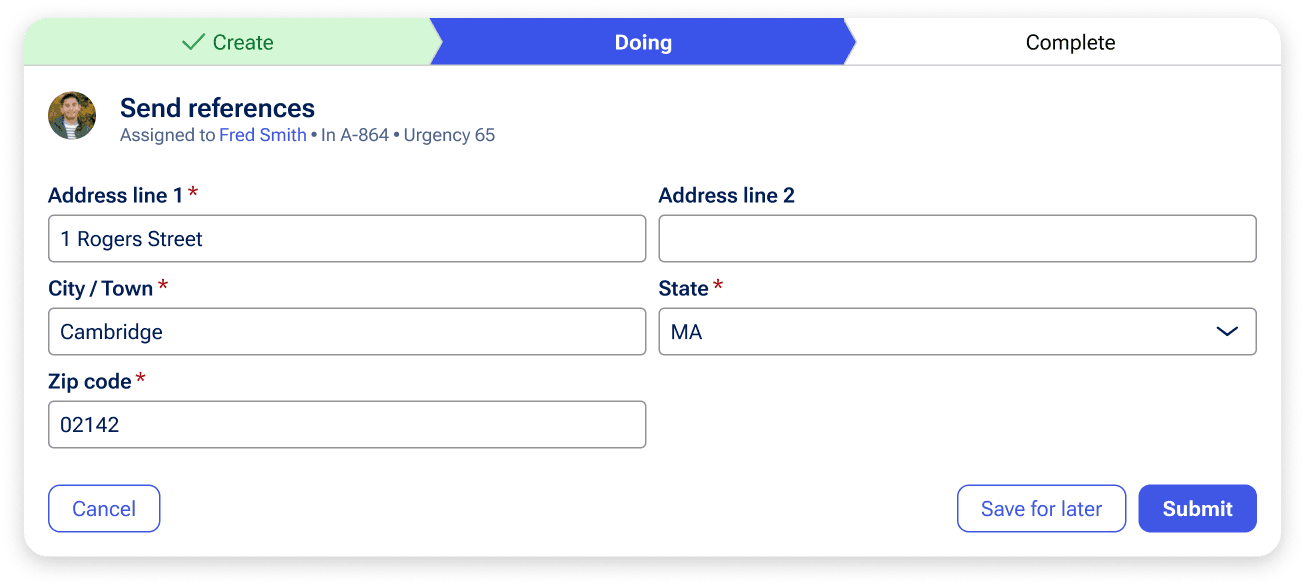
Forms allow users to enter and work with information to complete Assignments and finish work on a case. For example, in the form below, a customer service representative must enter a customer’s address as part of filing a claim.
Form widths are displayed under 80 characters wide to prevent form submission issues for low vision users, following the WCAG 2.2 1.4.8 guideline.
Your user must quickly reference information to fill out form details. The details panel offers quick access to the relevant information. This panel sits below the form, and houses supplemental data. For example, if the user must input a customer’s address, the panel can house this information.
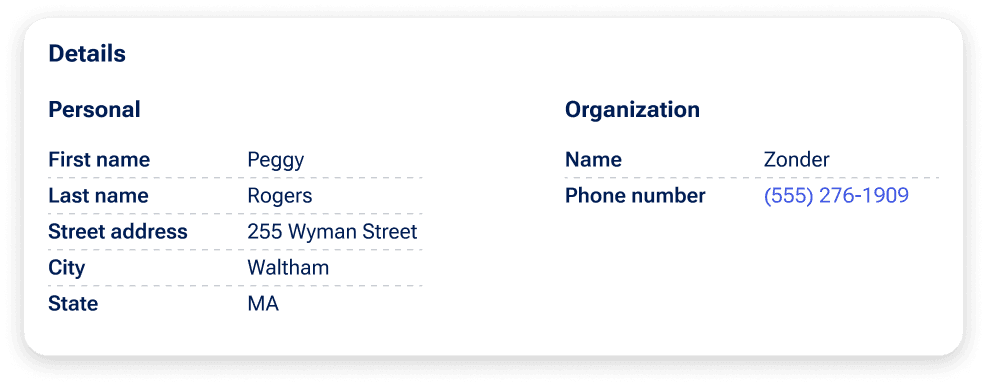
The information displayed in this panel depends on the tab selected in the summary panel. For example, a user may select from tabs that display additional case details, a Pulse feed, or other relevant cases, depending on the information they need to reference.
To help users complete work, include additional details for reference in the panel with current tab details, rather than within the form itself. This keeps forms concise and lets users focus on entering information, while allowing them to reference data within the panel, as needed.
Related components
While components can’t be placed wherever in the UI via authoring, knowing how they work in these patterns can help you understand our center-out design practices.
General
Inputs
- Text input
- Currency input
- Date and time inputs
- Email input
- File input
- Location input
- Number input
- Phone input
- Rich text editor
Selections